
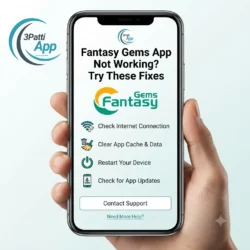
There is nothing more annoying than opening Fantasy Gems right before a match and getting a blank screen, endless loading, or a sudden crash. If the Fantasy Gems app not working problem is happening on your phone, do not delete your account or panic about your wallet first. In most cases, the issue is technical: cache, network, outdated version, storage, or a temporary server glitch.
This guide walks you through practical fixes in the same order a careful user should try them. Start with the quick checks. If those fail, move to the deeper ones. By the end, you should know whether the problem is on your device, your connection, or something that needs Fantasy Gems customer support.
Why the Fantasy Gems App Stops Working
Before tapping random settings, it helps to understand what usually goes wrong.
Common causes include:
- Outdated app version after a store update roll-out
- Corrupted cache from repeated installs, payments, or forced closes
- Weak or unstable internet during live contests and wallet actions
- Low storage space blocking updates, images, and temporary files
- Phone software conflicts after OS updates
- VPN, battery saver, or data saver interrupting background connections
- Server-side overload on big match days
- Login token expiry after password changes or long inactivity
- Device compatibility limits on very old phones
- Background app refresh restrictions that break session restore
If your app was fine yesterday and broken today, the cause is often cache, update, network, or server load. If it has been unstable for weeks, storage and device performance deserve a closer look.
Quick 5-Minute Fix Checklist
Try this first. Many users get back in within a few minutes.
1) Force close and reopen
Close Fantasy Gems completely from recent apps, wait 10 seconds, then open it again. A stuck session is a surprisingly common reason for endless loading.
2) Switch network
Toggle between Wi-Fi and mobile data. If you are on public Wi-Fi, switch to mobile data. If mobile signal is weak, try stable Wi-Fi.
3) Turn airplane mode on and off
Enable Airplane Mode for 15 seconds, disable it, wait for signal, then reopen the app. This refreshes your network registration.
4) Check whether your phone storage is nearly full
If storage is 90%+ full, clear photos, videos, or unused apps, then reopen Fantasy Gems.
5) Confirm the app has a pending update
Open Google Play Store or App Store, search Fantasy Gems, and update if available.
If the app still fails after these five steps, continue below.
Fix 1: Update Fantasy Gems to the Latest Version
An outdated build is one of the top reasons the Fantasy Gems app stops working correctly.
Do this:
- Open your app store
- Search for Fantasy Gems
- Tap Update if you see it
- Reopen the app after installation completes
Why this matters: payment gateways, login security, contest screens, and wallet modules change often. Old versions can crash on screens that newer builds already fixed.
Tip: If Update is missing, pull down to refresh the store page. Sometimes the button appears after refresh.
Fix 2: Clear Cache (Most Effective Everyday Fix)
When people say “Fantasy Gems app not working,” cache cleanup solves a large share of cases.
Android
- Settings → Apps → Fantasy Gems
- Storage
- Tap Clear Cache
- Reopen the app
Clear Cache is safe. It does not delete your account.
When to Clear Data instead
Only if clearing cache is not enough and you are ready to log in again.
- Settings → Apps → Fantasy Gems → Storage
- Tap Clear Data / Clear Storage
- Open the app
- Log in with your registered mobile/email
Important: Clearing data signs you out. Keep your login details ready.
iPhone
iOS does not give the same cache button. Use this instead:
- Offload or delete the app
- Reinstall from App Store
- Log in again
Fix 3: Check Internet Quality, Not Just Signal Bars
The app may open on a weak connection but fail when loading contests, wallets, or live updates.
Test your connection:
- Open a news site or YouTube for 10 seconds
- If pages load slowly, Fantasy Gems will struggle too
- Move closer to Wi-Fi router
- Turn off VPN temporarily
- Disable data saver for Fantasy Gems
Also check whether date and time are set to automatic. Wrong device time can break secure connections and make the app look “down.”
Fix 4: Restart Your Phone
It sounds basic because it works.
A restart clears temporary memory issues, frozen background processes, and network stacks that never fully recovered after signal drops.
- Restart your phone
- Wait for full boot
- Connect to a stable network
- Open Fantasy Gems before opening too many other heavy apps
If your phone has been running for many days without restart, do this before reinstalling.
Fix 5: Reinstall Fantasy Gems Cleanly
If the app crashes on launch, shows a white screen, or freezes on splash logo, reinstall.
Clean reinstall steps:
- Note your registered mobile/email
- Uninstall Fantasy Gems
- Restart phone
- Reinstall from official Play Store / App Store only
- Log in and test wallet + contests
Avoid third-party APK sites. Unofficial installs cause security risks and unstable performance.
After reinstall, if the same crash returns immediately, the issue may be account-side, OS conflict, or temporary server failure.
Fix 6: Free Up Storage and RAM
Fantasy Gems needs room for updates, images, and temporary files.
Practical cleanup:
- Delete large videos and unused apps
- Clear download folders
- Remove old WhatsApp media
- Keep at least a few GB free if possible
Then reopen the app. Low storage often shows up as failed updates, missing banners, stuck loading icons, or random closures.
Fix 7: Review App Permissions
If Fantasy Gems cannot access needed permissions, some screens fail.
Check:
- Storage / photos access where required
- Phone permission only if the app legitimately requests it for verification flows
- Notification permission if you rely on OTP prompts
Do not grant strange permissions to unofficial apps. Stick to the official Fantasy Gems listing.
Fix 8: Turn Off Battery Saver and Aggressive Optimizers
Battery saver modes can block background network activity. That leads to:
- Stuck loading
- Failed refresh
- Login loops
- Payment page timeouts
Try this:
- Disable battery saver temporarily
- Allow unrestricted battery usage for Fantasy Gems if your phone has that setting
- Pause third-party “cleaner” or “booster” apps
- Reopen Fantasy Gems and test again
Fix 9: Check for Phone OS Updates and Compatibility
Sometimes the app is fine, but your phone software is the weak point.
- Install pending system updates
- Reboot after OS update
- Retest Fantasy Gems
On very old devices, performance limits are real. If every modern app lags, Fantasy Gems will too. Closing background apps before contests helps.
Fix 10: Fix Login, OTP, and Session Errors
An app can “not work” even when it opens, because login never completes.
Try:
- Request a fresh OTP
- Wait for SMS without switching networks mid-request
- Do not request OTP 10 times in a row
- Use registered number only
- Reset password if password login fails
- After success, avoid rapid logout/login loops
If OTP never arrives:
- Check spam/blocked SMS
- Confirm signal for SMS, not just data
- Wait a few minutes after too many attempts
Fix 11: Server Downtime and Peak Match Traffic
Not every failure is your phone.
On big match days, servers can slow down. Symptoms look like:
- Endless spinner
- Contest list not loading
- Wallet taking forever
- App opens then kicks back to home screen
What to do:
- Wait 5–15 minutes
- Retry on stable network
- Avoid repeated force opens every second
- Check whether other users report outages on official channels or trusted communities
If your bank app and browser work fine but Fantasy Gems remains down for everyone-level reasons, patience is better than repeated reinstalls.
Fix 12: Payment Screens Not Loading Inside the App
Sometimes the main app works, but Add Cash or Withdraw screens fail.
Checklist:
- Update app
- Clear cache
- Stable network
- Disable VPN
- Try another payment method only after confirming no pending debit
- Recheck later if UPI/bank rails are under maintenance
If money was deducted and wallet not updated, that becomes a deposit-tracking issue. Keep Order ID and UTR ready for support.
Android-Only Extra Fixes
If you use Android:
- Disable battery optimization for Fantasy Gems
- Remove from “deep sleep” / restricted apps lists on Samsung, Xiaomi, Vivo, Oppo, Realme skins
- Turn off private DNS temporarily if connection is unstable
- Test with mobile data APN reset only if your general internet is broken
- Make sure you did not install a cloned/dual-app copy that conflicts with the main app
Dual apps and parallel space tools often create weird login and notification issues.
iPhone-Only Extra Fixes
If you use iPhone:
- Update iOS
- Offload App → reinstall
- Check Screen Time restrictions are not blocking Fantasy Gems
- Reset network settings if all apps have connectivity problems
- Ensure Date & Time is Automatic
If iOS storage is critically low, reinstall may fail until you free space.
What Still Works When Fantasy Gems App Is Down
Even if contests will not load, prepare these details so you are ready:
- Registered mobile/email
- User ID
- Last successful login time
- Screenshots of the error
- Device model and OS version
- App version number (if visible in store or settings)
This preparation helps if you need Fantasy Gems customer support.
When You Should Contact Support
Contact official support if:
- App crashes repeatedly after update + clear cache + reinstall
- Login is blocked with an account message
- Wallet actions fail while money movement is involved
- Error texts mention suspension, verification, or restriction
- The issue continues across Wi-Fi and mobile data on a healthy device
Send a clean message:
Hello Support Team,
The Fantasy Gems app is not working on my phone.
Registered mobile: [number]
User ID: [ID]
Device: [model]
OS version: [version]
App version: [version]
Problem: [crash / blank screen / loading / login error]
Started on: [date/time]
I already tried update, clear cache, reinstall, and network switch.
Screenshots attached.
Please help.
Thank you.
Mistakes That Make App Problems Worse
Avoid these:
- Installing random APKs from unknown websites
- Clearing data without knowing your login details
- Creating a second account because the app lagged once
- Sharing OTP with “support agents” on Telegram/WhatsApp
- Paying anyone for an “app unlock tool”
- Rapid-fire OTP requests that temporarily lock SMS delivery
- Leaving storage completely full and expecting updates to work
Most of these create new problems on top of the original one.
How to Keep Fantasy Gems Running Smoothly
A little maintenance prevents repeat issues:
- Keep automatic updates on for Fantasy Gems, or check weekly
- Clear cache once in a while if the app feels heavy
- Restart your phone regularly
- Keep free storage available
- Use stable internet during deposits and withdrawals
- Avoid VPN during payments if it breaks sessions
- Log in from your trusted personal device
- Close heavy background apps before joining contests
Think of it like warming up before a match. Small habits, fewer interruptions.
Fantasy Gems App Not Working vs Account Issues
It is important to separate the two.
App not working
- Crash, lag, blank screen, loading loop
- Usually fixed by update/cache/network/reinstall
Account issue
- Blocked, suspended, KYC required, login denied by policy
- Needs verification or support review
If the app opens and clearly shows an account restriction message, follow account recovery and KYC steps instead of endless technical reinstalls.
A Practical Order That Saves Time
Use this sequence every time:
- Force close + network switch
- Update app
- Clear cache
- Restart phone
- Check storage + battery saver
- Reinstall from official store
- Test on second network
- Contact support with screenshots if still broken
This order fixes most cases without wasting an hour on random settings.
FAQ: Fantasy Gems App Not Working
Why is my Fantasy Gems app not working all of a sudden?
Usually because of cache corruption, a pending update, unstable internet, low storage, battery optimization, or temporary server load.
Does clearing cache delete my Fantasy Gems account?
No. Clear Cache does not delete your account. Clear Data / reinstall may require login again.
Why does Fantasy Gems keep crashing on opening?
Crash-on-launch is often fixed by updating, clearing cache, freeing storage, or reinstalling the official app.
Can VPN cause Fantasy Gems to stop working?
Yes. VPN can interrupt secure sessions and payment pages. Turn it off and retry.
What if Fantasy Gems works on Wi-Fi but not on mobile data?
Your mobile network may be unstable, restricted, or affected by data saver settings. Test signal quality and disable data saver for the app.
Should I create a new Fantasy Gems account if the app is lagging?
No. App lag is not a reason to create another account. That can create policy problems later.
When should I contact Fantasy Gems customer support?
After update, cache clear, reinstall, and network checks fail, or if money/account access is involved.
Final Action Plan
If the Fantasy Gems app not working issue is happening right now:
- Force close the app
- Switch Wi-Fi ↔ mobile data
- Update Fantasy Gems
- Clear cache
- Restart your phone
- Free storage and disable battery saver
- Reinstall from the official store
- If still broken, contact support with device details and screenshots
Work down the list once. Do not jump randomly.
Conclusion
When the Fantasy Gems app not working problem shows up, the fix is usually simple: refresh your network, update the app, clear cache, and give your phone a clean restart. Reinstall only after those basics fail. Keep your login details ready, avoid unofficial APKs, and contact official support if crashes continue or wallet access is affected.